Sunday, 6 February 2011

Directory Management with KRename

Yesterday, I got a very interesting e-mail from Todd about using KRename. His request required one new feature which was added to KRename SVN and makes KRename even more powerful. So, I think his usecase is interesting enough to be shown here.

First of all, he has several files which he wants to sort into different directories based on parts of their names. If the filename contains the word "essay" it is supposed to go into a subdirectory called "essay/" and the same should be done for the memo's. His example list of files looks like this:


Work Essay for fred.txt
Work Essay for bob.odt
Work Essay for alice.doc
Work Memo for mary.odt
Work Memo for ben.txt
Work Memo for carey.doc


At the end, we want a directory and file structure like this:

Essay/Work Essay for fred.txt
Essay/Work Essay for bob.odt
Essay/Work Essay for alice.doc
Memo/Work Memo for mary.odt
Memo/Work Memo for ben.txt
Memo/Work Memo for carey.doc


You can create directories in KRename during renaming of files using the [dirsep] operator or by simply using a / (slash) in the template. So, the template newdir[dirsep]$ will create a new directory called newdir and move all files to this directory. The token $ is KRename' way of saying, "insert the original filename here".

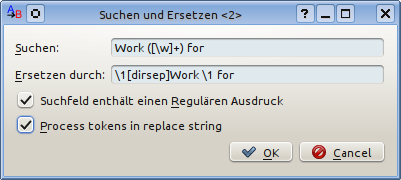
Now, one can combine this feature with the powerful regular expressions. Just go to the "Search and Replace ..." dialog and enter the regular expression Work ([\w]+) for and replace it with \1[direp]Work \1 for. The backreference \1 inserts a matched string from the regular expression into the results. Thereby, we can include either "memo" or "essay" in the new directory name. The matched part is indicated by brackets in the regular expression.

To make this work, one new feature was added to KRename. The dialog contains a new checkbox which allows to enable processing of KRename tokens in the replacement string of find and replace. We need this feature to process the [dirsep] token correctly and create a new directory
See the screenshots below.


If you have similar interesting usecases for KRename or questions on how to do thinks, do not hesitate to write a mail to our mailinglist!

Sunday, 30 January 2011

Modifying and analyzing colors in PDF files using podofocolor

What is podofocolor?


Podofocolor is the newest addition to the podofo-tools package. It is a command-line tool to analyze and/or modify all colors in a PDF file. This can be done using predefined rules or based on a custom Lua script.

Basically, podofocolor opens a PDF file and goes through every page or vector graphics object (e.g. an XObject) and looks at every PDF command. Whenever it encounters a colorspace definition or a PDF command, which sets a color for a following PDF operation like “draw a line” or “fill area with color”, an action can be performed. These actions are either predefined actions or can be defined by implementing a C++ interface or more likely by providing a Lua script. Predefined actions are “convert this color to grayspace” or “print color name to stdout”; however more complicated actions can be easily created as well. As can be seen by the “grayscale”-action, the most powerful feature of the tool is to replace colors in a PDF file. Custom color conversion algorithms can be implemented in Lua and be immediately applied to any PDF file.

How is it useful?


There are different use-cases for such a tool and I assume users will come up with even more options. Possible usage scenarios that come to my mind can be categorized in two areas: analyzing colors and modifying colors.

  • Analyzing colors

    • Find out, which colorspaces or colors are used in a PDF

    • Verify that certain colors are not used in a PDF

    • Verify that only CMYK or ICC-based colors are used in a PDF


  • Modifying colors

    • Convert colorspace of a PDF (e.g. convert it to grayscale or CMYK)

    • Convert colors in a PDF to certain corporate colors

    • Split one PDF file into four different PDF files, where each file represents one component of the CMYK colors used in the PDF. As a result, you will receive one PDF containing only the cyan color channel, one containing the yellow one, etc..


Usage


The usage of the command-line tools is simple:

./podofocolor [converter] input.pdf output.pdf

Different values are possible to be used as a converter. The table below lists all converters which are currently available:


Converter   Description
dummy   This is an example implementation of a converter in C++, which will convert all colors in a PDF to RGB red.
grayscale   The grayscale converter changes all colors to its grayscale equivalents in a grayscale colorspace.
lua planfile   The Lua converter is the most powerful one. It takes a lua file as another parameter. This Lua file provides the color conversion descriptions implemented as Lua functions.

For example, to convert the colors in a PDF file using the included example.lua file, you would use the following command:

./podofocolor lua example.lua input.pdf output.pdf


Writing own converters


For the tool to be really useful, you will have to create your own converter. This can either be done by implementing the C++ interface IConverter or by creating a small and simple Lua script. If you consider creating a C++ implementation of the interface, the included Doxygen comments will be enough to get you started (Yes, it is that simple! For example, the grayscale converter consists of only 44 lines of source code and most other conversions will be the same size), so we will skip the C++ part and go straight to Lua.

Lua is a very simple, yet powerful, scripting language. To get started, it is best to download the example.lua file included in PoDoFo. It contains all the necessary function definitions, which you can adapt to your needs.

We will start with a short example: whenever podofocolor finds a definition of a stroking color on a PDF page (i.e. a color which is used when drawing lines or curves), it will call one function in the Lua script. The function called depends on the colorspace of the color definition. Currently, there are three different functions that can be called. set_stroking_color_gray will be called when a grayscale color is defined. Similarly, set_stroking_color_rgb or set_stroking_cmyk are called.
The example below shows an implementation of set_stroking_color_rgb with a rather simple implementation. The function gets the three parameters r, g, and b, which refer to the values of the red, green, and blue color components. The values are in the range of 0.0 to 1.0 as it is common in PDF files, where (0.0, 0.0, 0.0) is black and (1.0, 0.0, 0.0) is red. Now to the concrete function implementation: It checks if the passed color is black, if yes it returns a tuple with four values – which is a CMYK color – and thereby converts any occurrence of RGB black to CMYK black. For all other color values a tuple with three values is returned and the RGB color is not changed. Another option would have been to return a tuple with a single value and thereby convert the color to a gray value.


function set_stroking_color_rgb (r,g,b)
-- convert all black rgb values to cmyk,
-- leave other as they are
if r == 0 and
g == 0 and
b == 0 then
return { 0.0, 0.0, 0.0, 1.0 }
else
return { r,g,b }
end
end


Other functions in the script provide information about pages, objects, etc...

Limitations


Currently this tool does not convert images embedded in the PDF file. First of all, the focus of the tools is on modifying colors in PDF files and secondly, there are other tools, which can modify colors in images and/or work with images embedded in PDF files. If there is demand for such a feature, it can be easily added. Podofoimgextract, another PoDoFo-tool, is a good example of how easy it is to work with images using the PoDoFo API.

Download


Podofocolor is currently available in SVN trunk. Instructions on how to get and build PoDoFo trunk can be found on our website. It works on all supported platforms, including Windows and Unix systems. We are interested in your feedback! Feel free to drop a mail containing your feedback, comments, or suggestions to our mailing-list podofo-users@lists.sourceforge.net.

Wednesday, 15 September 2010

New sort modes in KRename

An often requested feature in KRename was to have more possibilities to sort the files before renaming. This was indeed a major limitation, as it is often eligible to sort files by date or some other criteria.

Some time ago, I found finally time to add sorting by date and today I finished a new powerful custom sorting feature, which allows to use any token to be used for sorting, which is supported by one of the plugins provided by KRename. This means sorting is now possible by almost any criteria, like [filesize], [creationdate], [user] or even [##tagTrack]. Of course, you can choose whether you want to sort ascending, descending or by numbers.

The screenshot below shows the new selection of sorting options in KRename.


If you click on "Custom...", you get a dialog like the one below, to specify what sorting criteria you want to use.


The final result might look like this, see the screenshot of Dolphin as a proof that we really sort by [filesize]:


This feature is currently only available in KRename SVN trunk. Still, I would be interested in your feedback.

Tuesday, 17 August 2010

KBarcode4-light released

Where is KBarcode for KDE4? Well, there are porting efforts under way in SVN, but these are sadly far from completion.

If you just want to create barcodes easily and save them as image or a PDF, rescue might be near in the form of KBarcode4-light. KBarcode4-light is a simple barcode generator for KDE4. It supports many 1D and 2D barcode formats and can export them as images or PDF files.

It is similar to KBarcode for KDE3, but less powerful. KBarcode4-light allows only to create single barcodes. As the port for KBarcode is not yet ready and no one knows when it will be ready, KBarcode4-light provides basic barcode generation for KDE. An additional benefit is that it provides an easy to use interface for Barcode Writer in Pure Postscript.


It is written in Python using the amazing PyQt4 Qt bindings and based on Barcode Writer in Pure Postscript by Terry Burton.

KBarcode4-light downloads are available. It requires Python and PyQt bindings for Qt4, as well as Ghostscript in your PATH. Please submit any feedback to the KBarcode mailing list.

UPDATE: Due to a small bug, a new fixed version 0.2 is available for downloads.

Saturday, 7 August 2010

podofocrop: PDF cropping in 10 lines of code

The PoDoFo tools family got a new member during the last week: podofocrop. This little tool crops the white margins of pages in PDF files.

I use tools like these a lot, for example when writing scientific papers or the like, because I try to include all figures as PDF files to have better quality in the final PDF. To do so, it is often necessary to remove the margin around the figure before including it. This is exactly what podofocrop is doing.

The figure below illustrates what podofocrop is doing. Figure (a) shows the input PDF file, we can see a page with a little bit of text and a big white margin. In the next step, Figure (b), podofocrop calculates the bounding box for the final PDF, i.e. the area on the page that has content and the size to which we want to crop the PDF. Ghostscript is used for this step and has to be in your PATH. Finally, the PDF is cropped and the new page is much smaller without any disturbing margins.


If you are interested, get podofocrop from the PoDoFo SVN. In case of questions, please contact the mailing list.

Please note: Windows support is still experimental and untested so far. It will compile but there are no guarantees that it will work. Help with the Windows port would be greatly appreciated.

At the end, let we give you one little detail on the implementation, because it is so amazingly simple using PoDoFo. If you remove the code for parsing command line arguments, communication with Ghostscript and error handling, you see that the tool has only a few lines:


std::vector cropBoxes = get_crop_boxes_from_gs( pszInput );
PdfVariant var;
PdfMemDocument doc;
doc.Load( pszInput );

for( int i=0;i {
PdfPage* pPage = doc.GetPage( i );
cropBoxes[i].ToVariant( var );
pPage->GetObject()->GetDictionary().AddKey( PdfName("MediaBox"), var );
}

doc.Write( pszOutput );

Wednesday, 21 July 2010

Saturday, 29 May 2010

Organising publications using KRename

I have to work with lot's of scientific publications at the moment. That means, I have a large directory with many PDFs that are related to my work. Sometimes, it is cumbersome to find the right PDF or publication to look something up. Of course, I could rename every PDF after I downloaded it by hand, but - you might guess it - I am to lazy for this.

But help is in sight! I added a plugin to KRename, which can rename files based on meta-data included in PDF files. Organising a large set of publications is now a matter of adding the PDF files to KRename and using the template "[pdfAuthor] - [pdfTitle]". Convenient, isn't it? The screenshot below shows KRename while renaming a few PDF files.


The supported tags are [pdfPages] (number of pages), [pdfProducer], [pdfTitle], [pdfSubject], [pdfKeyword], [pdfCreator] and, [pdfAuthor]. If you have an idea for further meta-tags, do not hesitate to contact me. It should be quite easy to add more information, the current implementation is a matter of 10 lines thanks to the PoDoFo library used.


A pity is that many PDF authors do not add proper meta-data to their PDF files. So, if you are writing on a publication at the moment, please make sure you add your information to the PDF metatags.

This feature is currently only available in KRename SVN trunk.